
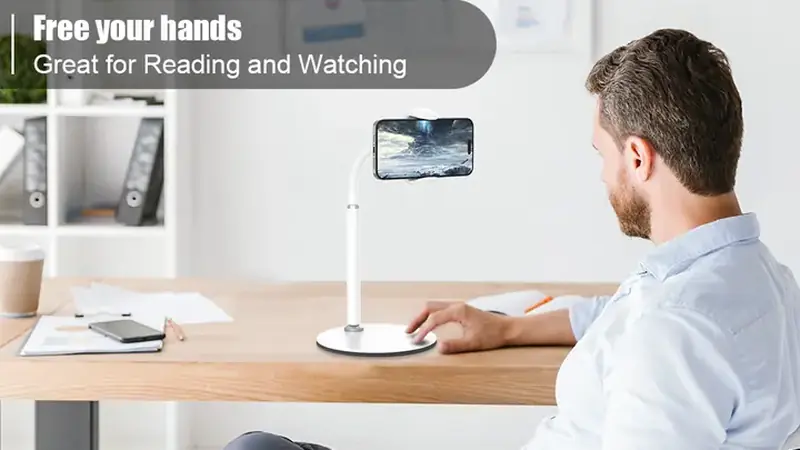
Auto-scroll is the VIP extra you will use every day without thinking about it. TikTok You advances the feed on its own so your hands stay free.
Turning it on
Open settings, find the auto-scroll option, and set your preferred delay per video. Start with the default and tune from there.
Picking the right timing
Shorter delays suit comedy and memes; longer ones suit tutorials and recipes. There is no perfect number, only your number.
Best everyday uses
- Cooking, with the phone propped where you can see it.
- Workouts, for background entertainment between sets.
- Falling asleep, with a sleep timer so it stops with you.
Pairing with playback speed
Auto-scroll plus 1.25x speed is the power combo for skimming lots of content fast. The playback speed guide covers the speed side in detail.
Auto-scroll shines during hands-busy moments: cooking, workouts, or winding down in bed. Start with a conservative timer, around eight to ten seconds per video, and adjust from there. Shorter timers suit comedy and memes, while longer ones work for tutorials and storytimes. Pair it with the app's night mode for late sessions so the screen does not fight your eyes, and remember to lock your screen orientation if you watch in bed. A sudden flip to landscape in the middle of a clip is the fastest way to ruin the vibe.